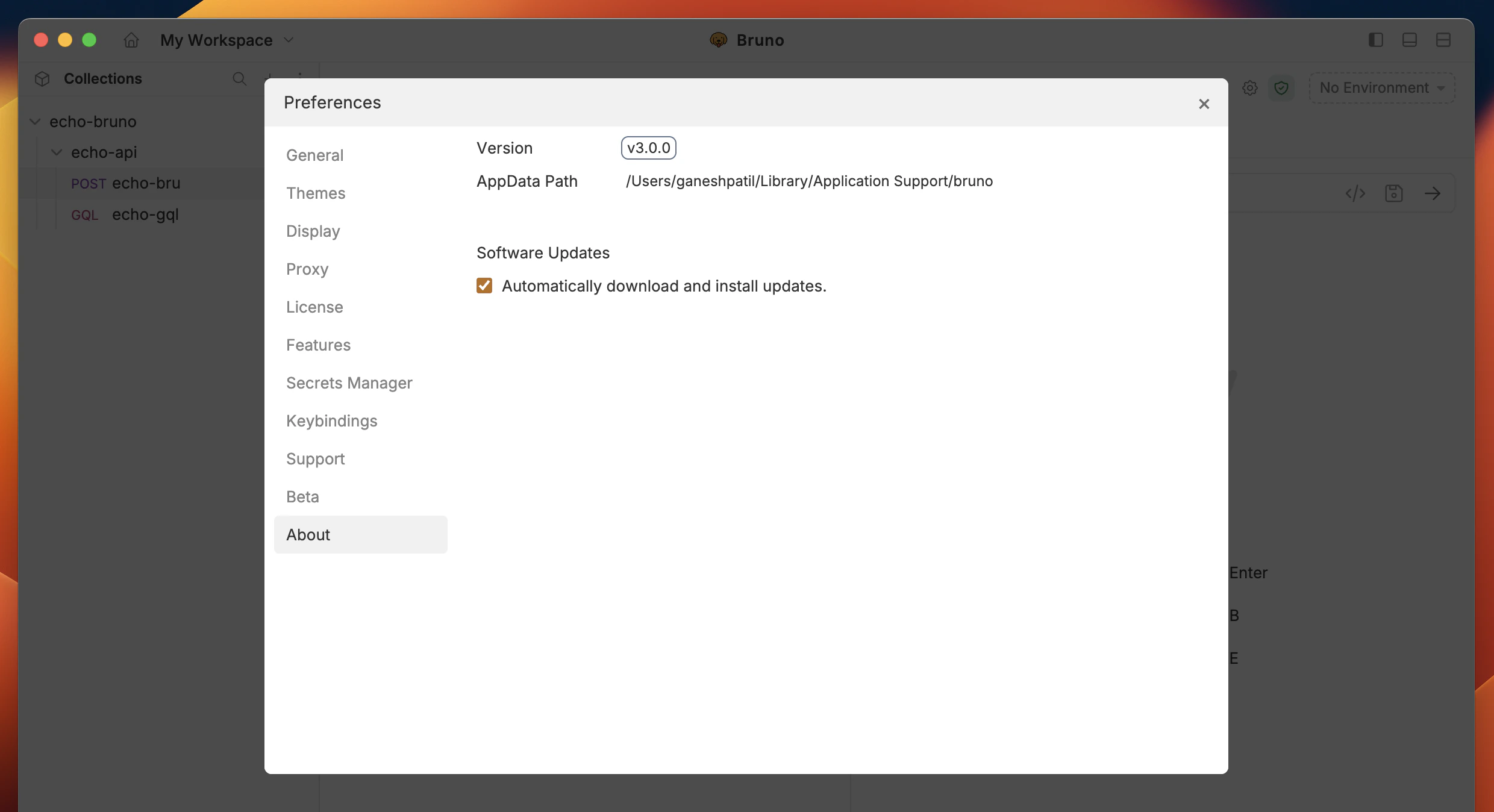
General
The General settings include options for SSL/TLS, Custom CA certificates, and Cookies. You can customize how cookies are handled by choosing to store and send them automatically, or simply uncheck the box if you prefer not to store cookies.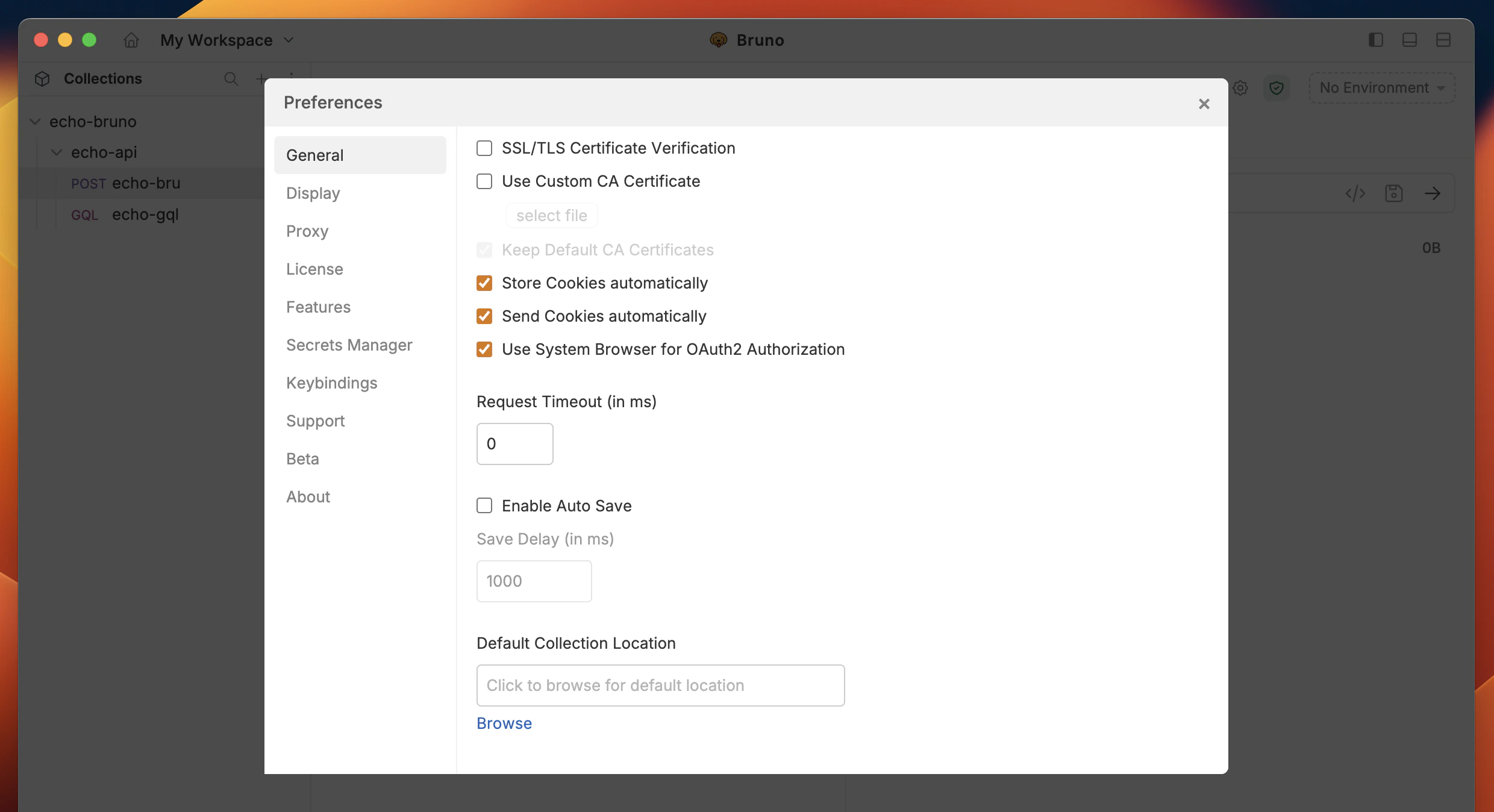
Themes
Bruno offers a variety of themes to personalize your workspace. You can choose from different color schemes to match your preference and enhance your visual experience while working with APIs.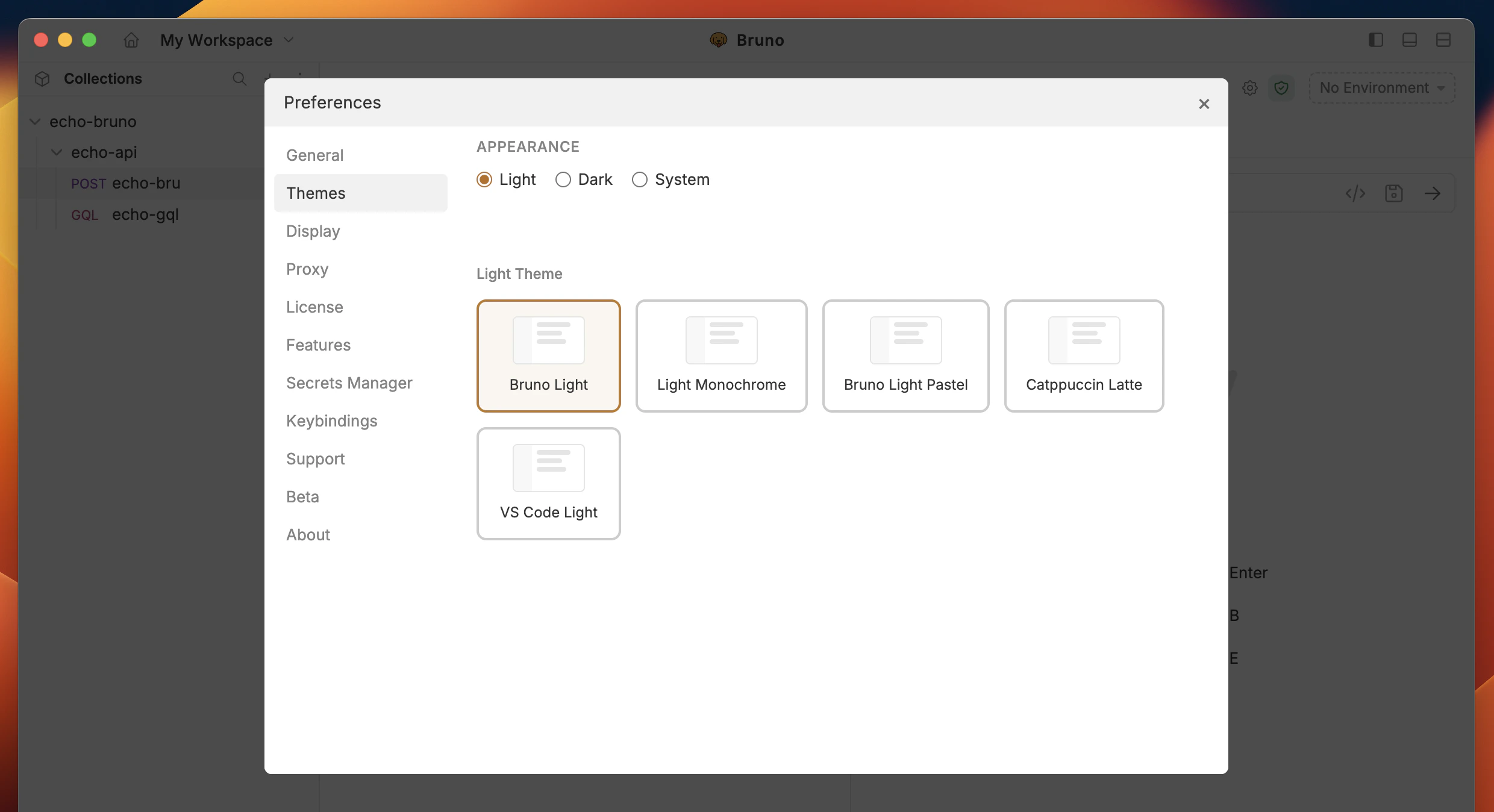
Display
In the Display section, you can control the appearance of the Bruno, choosing between Dark, Light, or System mode, based on your preference. Additionally, you can customize the code editor font to suit your style.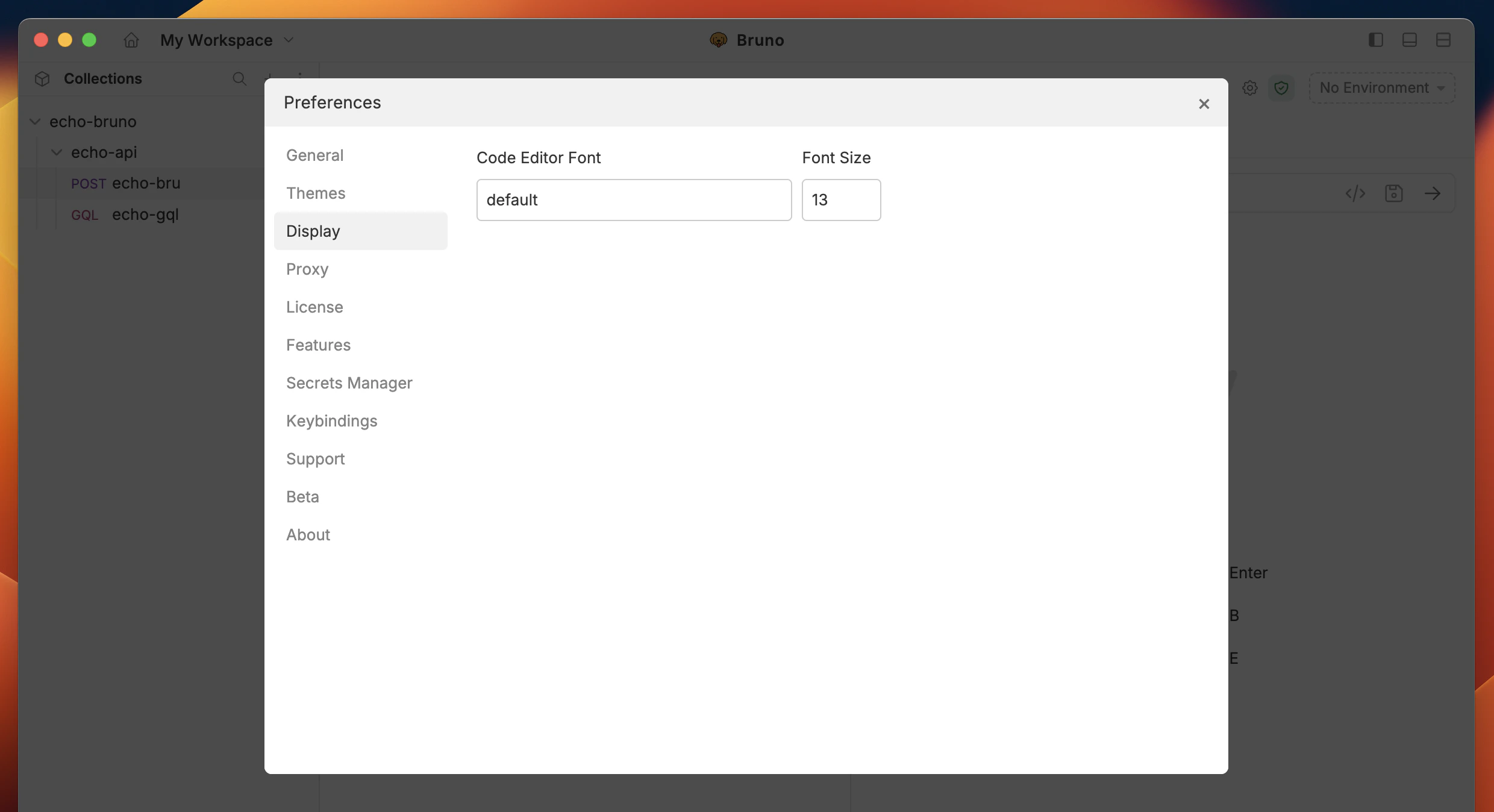
Proxy
You can customize the Proxy settings by selecting On, Off, or System, depending on your needs. For more details, you can refer to the Proxy guide here to learn more. By default, the Proxy setting is Off in Bruno.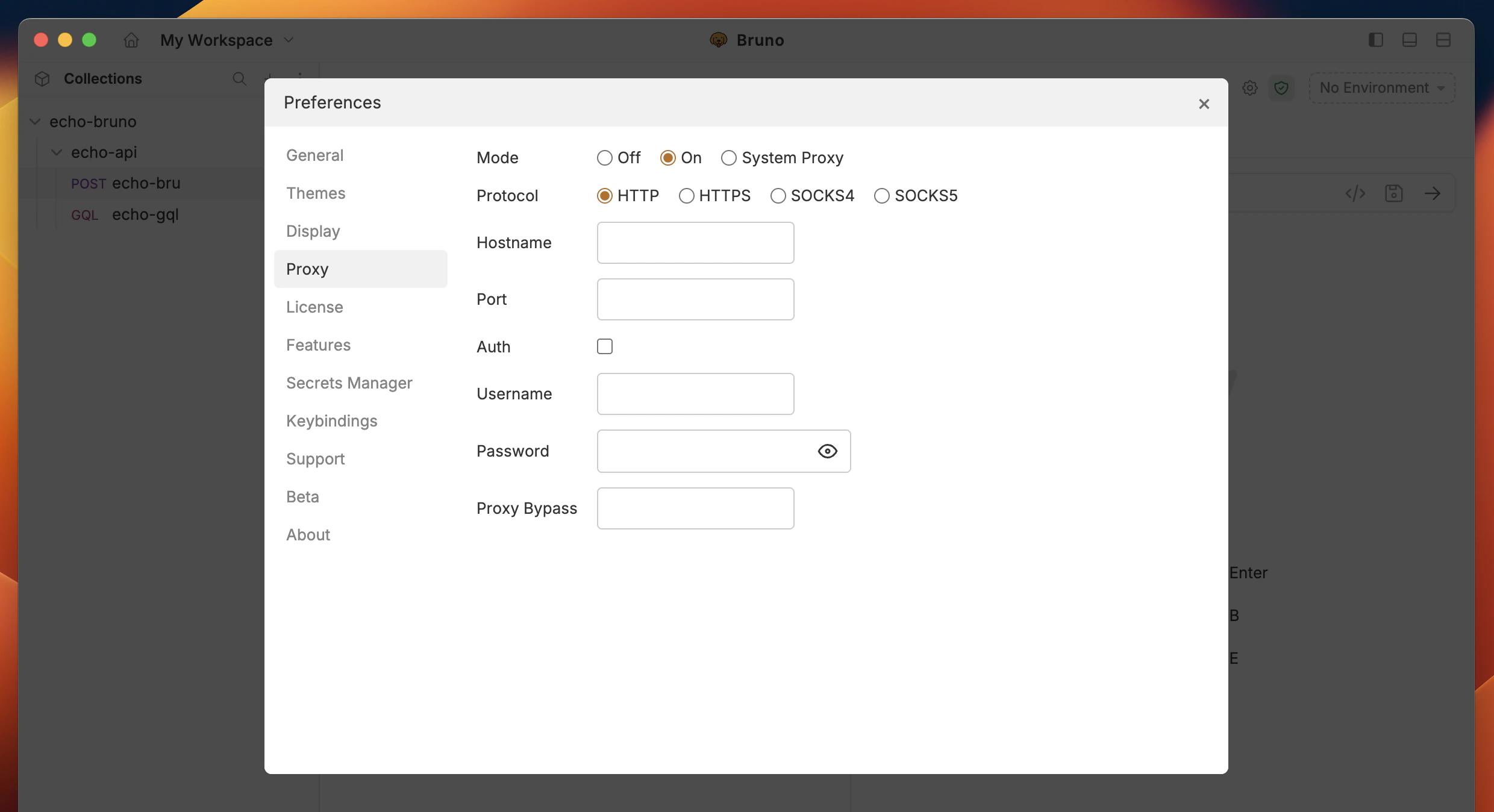
License
Bruno offers Ultimate and Pro plans for premium users. You can refer to the Licensing guide to learn more about the features and benefits of each plan.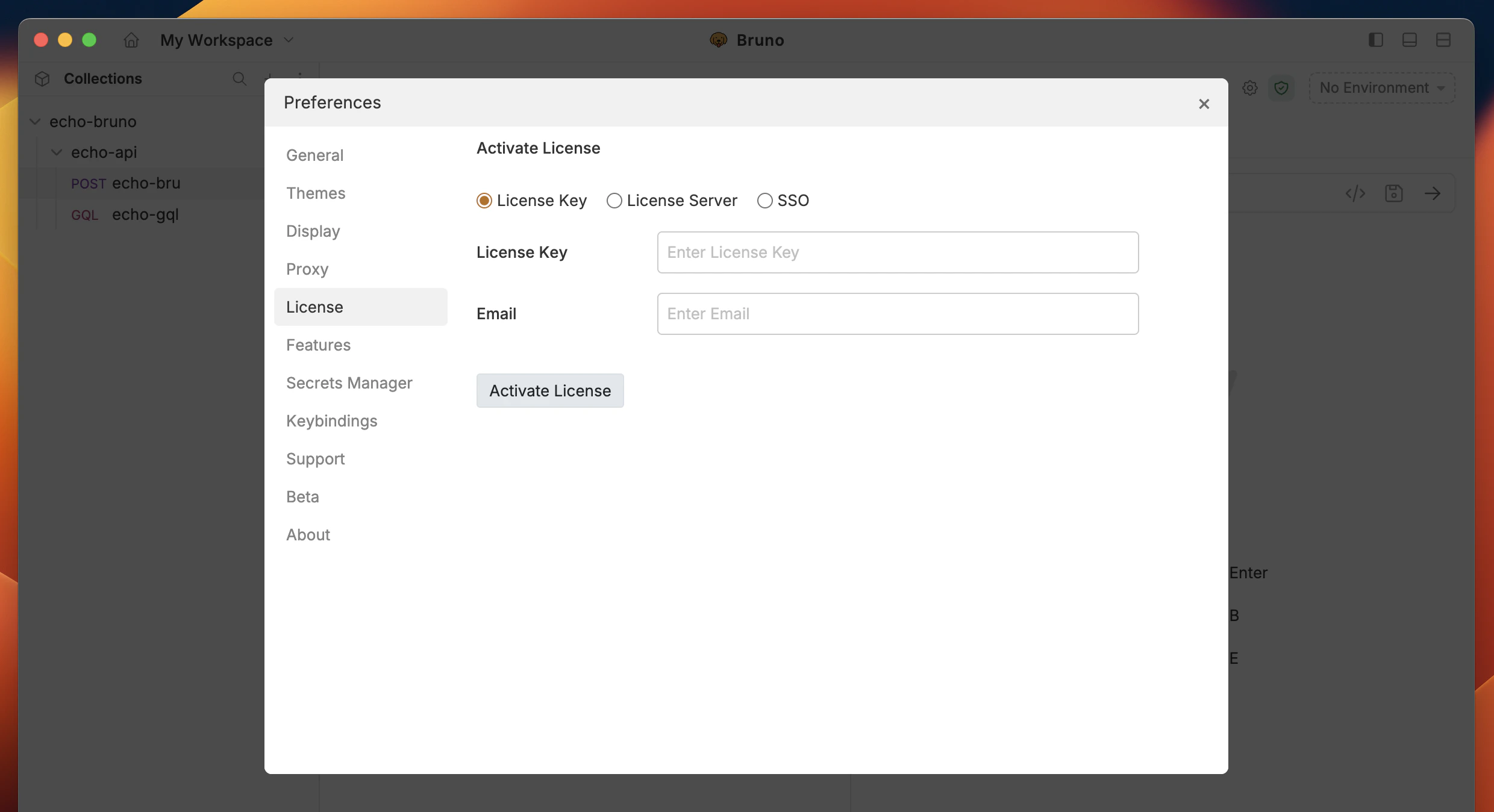
Keybindings
The Keybindings section lets you view and customize Bruno’s keyboard shortcuts. You can access it from Preferences > Keybindings.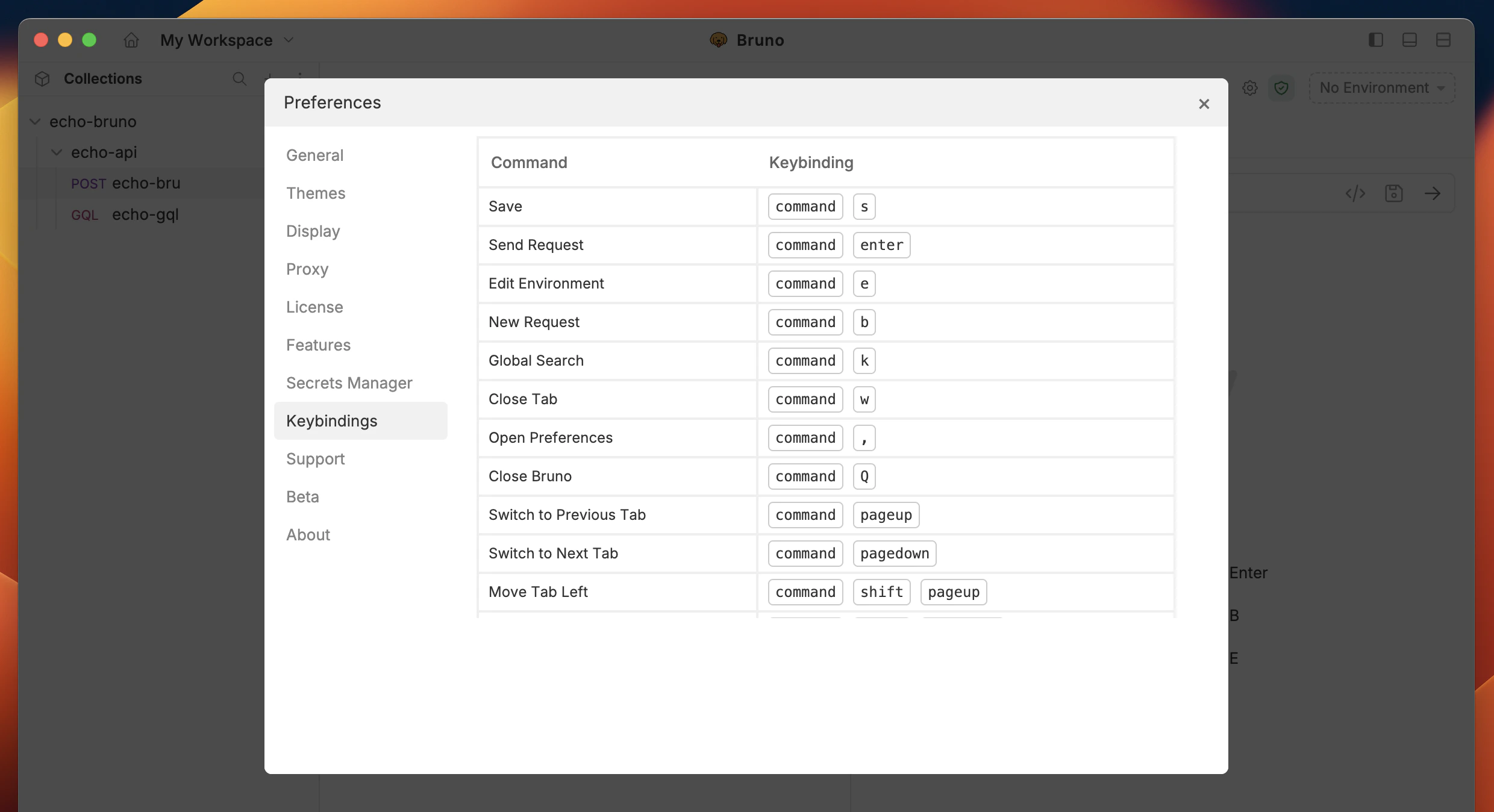
Default shortcuts
Below are the default keybindings. On macOS,Cmd is used in place of Ctrl.
Tabs
| Action | macOS | Windows / Linux |
|---|---|---|
| Close tab | Cmd + W | Ctrl + W |
| Close all tabs | Cmd + Shift + W | Ctrl + Shift + W |
| Save | Cmd + S | Ctrl + S |
| Save all tabs | Cmd + Shift + S | Ctrl + Shift + S |
| Reopen last closed tab | Cmd + Shift + T | Ctrl + Shift + T |
| Switch to tab 1–8 | Cmd + 1 – Cmd + 8 | Ctrl + 1 – Ctrl + 8 |
| Switch to last tab | Cmd + 9 | Ctrl + 9 |
| Switch to previous tab | Shift + Cmd + [ | Shift + Ctrl + [ |
| Switch to next tab | Shift + Cmd + ] | Shift + Ctrl + ] |
| Move tab left | Cmd + [ | Ctrl + [ |
| Move tab right | Cmd + ] | Ctrl + ] |
Sidebar
| Action | macOS | Windows / Linux |
|---|---|---|
| Search sidebar | Cmd + F | Ctrl + F |
| Copy item | Cmd + C | Ctrl + C |
| Paste item | Cmd + V | Ctrl + V |
| Clone item | Cmd + D | Ctrl + D |
| Rename item | Cmd + R | Ctrl + R |
| Collapse sidebar | Cmd + \ | Ctrl + \ |
Requests
| Action | macOS | Windows / Linux |
|---|---|---|
| Send request | Cmd + Enter | Ctrl + Enter |
| Change orientation | Cmd + J | Ctrl + J |
Collections and environment
| Action | macOS | Windows / Linux |
|---|---|---|
| Import collection | Cmd + O | Ctrl + O |
| Edit environment | Cmd + E | Ctrl + E |
| New request | Cmd + N | Ctrl + N |
Search
| Action | macOS | Windows / Linux |
|---|---|---|
| Global search | Cmd + K | Ctrl + K |
View
| Action | macOS | Windows / Linux |
|---|---|---|
| Zoom in | Cmd + = | Ctrl + = |
| Zoom out | Cmd + - | Ctrl + - |
| Reset zoom | Cmd + 0 | Ctrl + 0 |
Developer tool
| Action | macOS | Windows / Linux |
|---|---|---|
| Open in terminal | Cmd + T | Ctrl + T |
Others
| Action | macOS | Windows / Linux |
|---|---|---|
| Open preferences | Cmd + , | Ctrl + , |
| Close Bruno | Cmd + Q | Ctrl + Shift + Q |
Customize a keybinding
To change a shortcut, click any row in the keybindings table. The row enters edit mode and listens for a new key combination. Press the keys you want to assign, and the shortcut saves automatically when valid. Rules for custom shortcuts:- Every shortcut must include at least one modifier key (
Ctrl,Cmd,Alt, orShift). Function keys (F1–F12) are the only exception. - Only one non-modifier key is allowed per shortcut (for example,
Cmd + Shift + Kis valid butCmd + K + Lis not). - Shortcuts reserved by your operating system (such as
Cmd + TaborCtrl + Alt + Delete) cannot be used. - A shortcut cannot be assigned to more than one action at a time.
Backspace or Delete while editing to clear the current shortcut and enter a new one.
Reset keybindings
- To reset a single shortcut, hover over the row and click the reset icon that appears.
- To reset all shortcuts to their defaults, click Reset Default at the top of the keybindings panel.
Disable keybindings
You can disable all keyboard shortcuts using the toggle at the top of the keybindings panel. When disabled, no shortcuts are active and the keybindings table is read-only.Secrets
There are three primary ways to manage secrets in Bruno, which you can learn about in the Secret Management Overview. This setting controls the integration with a Vault for secret management, which is available in Bruno Ultimate Edition.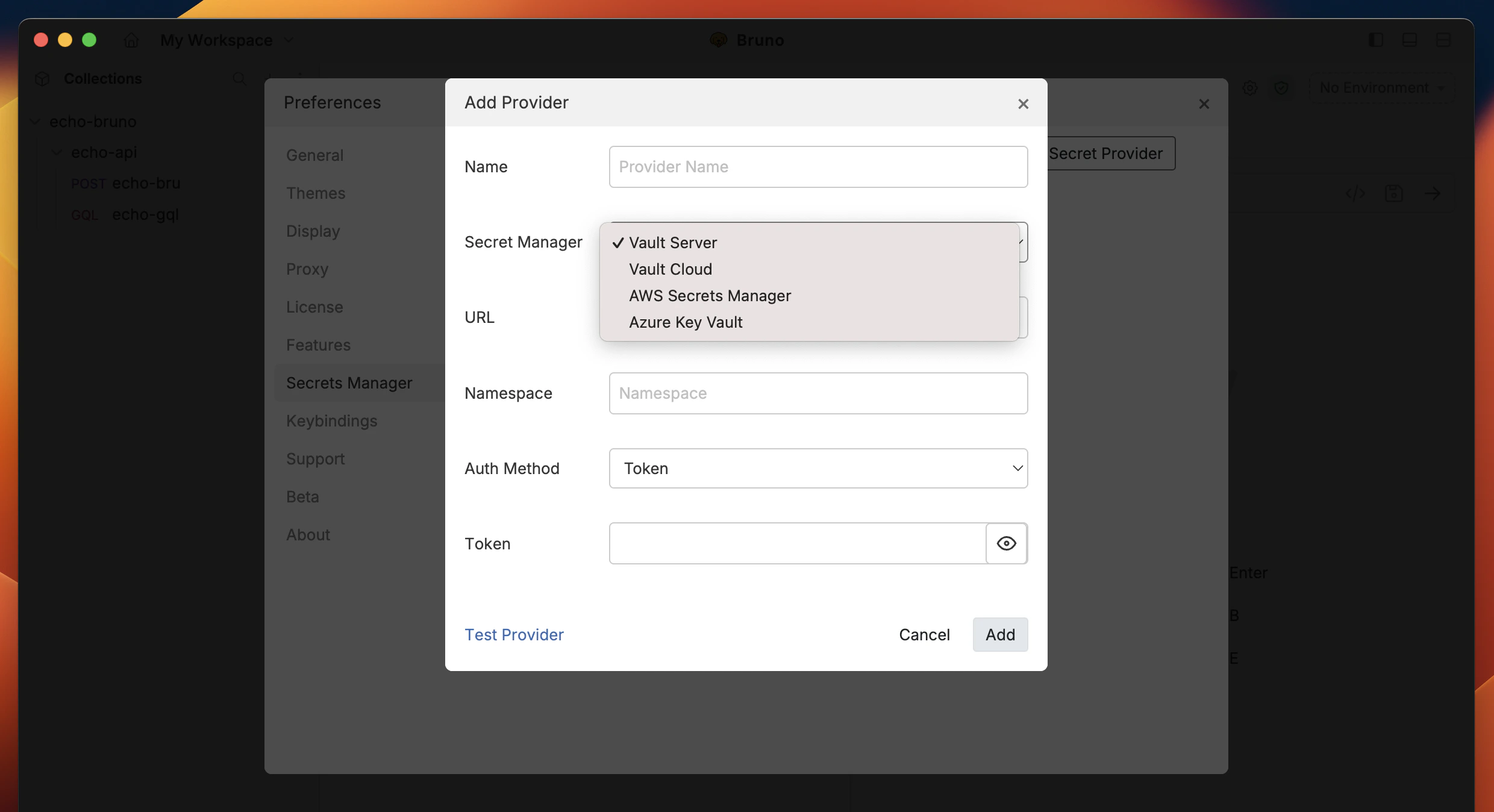
Support
If you encounter issues or need assistance, you can access a range of troubleshooting resources to help resolve your problem quickly.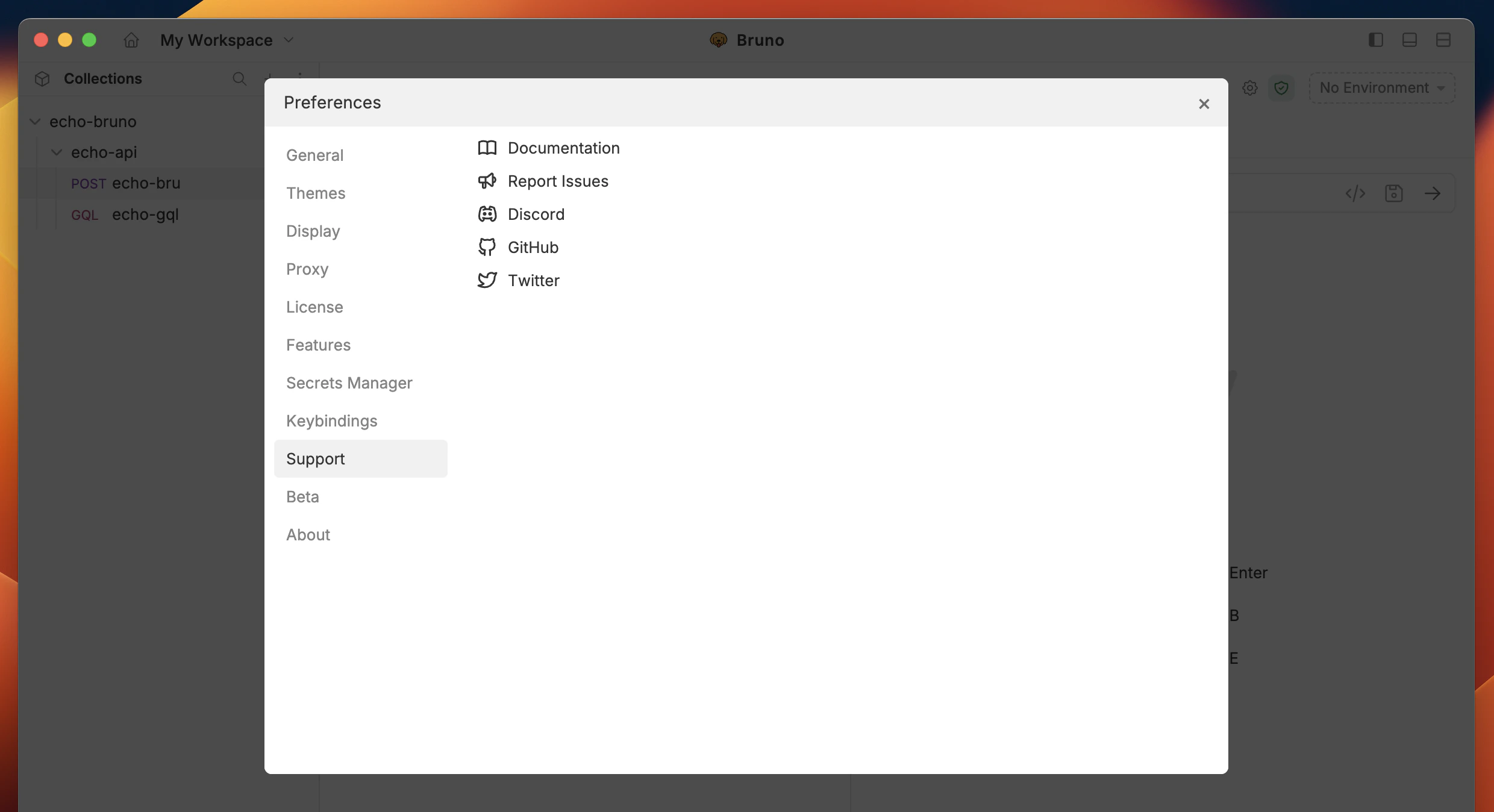
About
View application details and enable the auto-update feature to keep your app up to date automatically.